
Handing over a paper card at a trade show, only to watch the recipient instantly open their camera, scan the printed code, and hand the paper back to you, is the defining networking interaction of this decade. Professionals do not want to transcribe contact details manually. When you decide to create a digital business card, you are solving a data entry problem for the person you just met. The mechanism you use to transfer that data dictates whether your new contact actually saves your information or abandons the process halfway through because of a formatting error.
Quick Summary
A digital business card is a structured electronic file or hosted profile designed to transfer contact information instantly to a mobile device, typically triggered by a QR code scan or NFC tap.
- Encoding a URL rather than raw vCard data keeps the QR code pattern simple and scannable.
- Using dynamic routing allows you to update contact details without reprinting physical assets.
- Native integration with Apple Wallet and Google Wallet ensures the card remains accessible offline.
- Strict adherence to E.164 phone formatting prevents parsing errors across different operating systems.
Table of Contents
- 1. Choose the Data Delivery Architecture
- 2. Structure the Contact Payload
- 3. Generate the Digital Business Card QR Code
- 4. Integrate with Digital Wallets
- 5. Test Across Scanning Environments
- Common Pitfalls & Troubleshooting
- FAQ
- Recommended Reads
1. Choose the Data Delivery Architecture
The foundational decision in building a digital contact system is determining where the actual data lives. You can either encode the contact data directly into the QR pattern, or encode a web link that points to the data.
Raw vCard vs. Hosted Profile
Encoding a raw .vcf (vCard) file directly into a QR code means the code works entirely offline. The scanner reads the pattern, decodes the text, and prompts the phone to save the contact. However, a complete vCard containing a name, title, company, phone number, email, and website requires a massive amount of data. This results in a highly dense, complex QR code that is difficult for older smartphone cameras to focus on, especially in low light or from a distance.
The alternative is encoding a URL that directs the scanner to a hosted profile. This approach keeps the QR code pattern simple, allowing for faster scanning. More importantly, it enables dynamic updates. If you change your phone number, you update the hosted profile; the printed QR code remains unchanged. This is the standard approach when you create a virtual business card for enterprise deployment. For a deeper look at the underlying software mechanics, review How to Build Digital Contact Cards Using QR Code Generator Software.
Practical rule: Always use a hosted URL rather than raw vCard data if you plan to print the QR code on physical materials smaller than two inches wide.
2. Structure the Contact Payload
When a user scans your code and downloads your contact file, their operating system (iOS or Android) attempts to map your data fields to its native contacts application. If you structure this payload incorrectly, your data will end up in the wrong fields or be discarded entirely.
Standardizing Fields for Native Apps
The mistake most practitioners make here is using custom labels for phone numbers or emails (e.g., labeling a number "Direct Desk" instead of "Work"). iOS Contacts, in particular, struggles with non-standard labels, often defaulting them to "Other" or failing to make the number clickable for immediate dialing.
Phone numbers must use the E.164 international standard. This format includes the plus sign and country code (e.g., +14155552671). Without the country code, a contact saved while traveling internationally may fail to dial correctly when the user returns home. Similarly, populate "Organization" and "Title" fields distinctly. Merging them into a single field breaks the search functionality in native contact apps, making it impossible for the recipient to search their phone for your company name later. Understanding these data structures is critical when exploring Everything You Need to Know About Digital Business Cards with QR Codes.
3. Generate the Digital Business Card QR Code
Generating the visual code requires balancing aesthetics with technical reliability. A digital business card qr code must be readable by the lowest common denominator: an older smartphone with a scratched lens scanning in a dimly lit conference hall.
Error Correction and Density
QR codes utilize Reed-Solomon error correction. This restores data if the code is partially obscured or damaged. There are four distinct levels: L, M, Q, and H. If you intend to place a company logo in the center of your digital business card with qr code, you must use Level H. The logo essentially acts as "damage" to the code. Level H ensures the surrounding modules contain enough redundant data to compensate for the missing center.
The trade-off for higher error correction is increased module density (the code looks more pixelated). If you apply Level H to a code that contains a long, complex URL, the resulting pattern may become too dense to scan quickly. This is why using a short URL redirect is vital.
4. Integrate with Digital Wallets
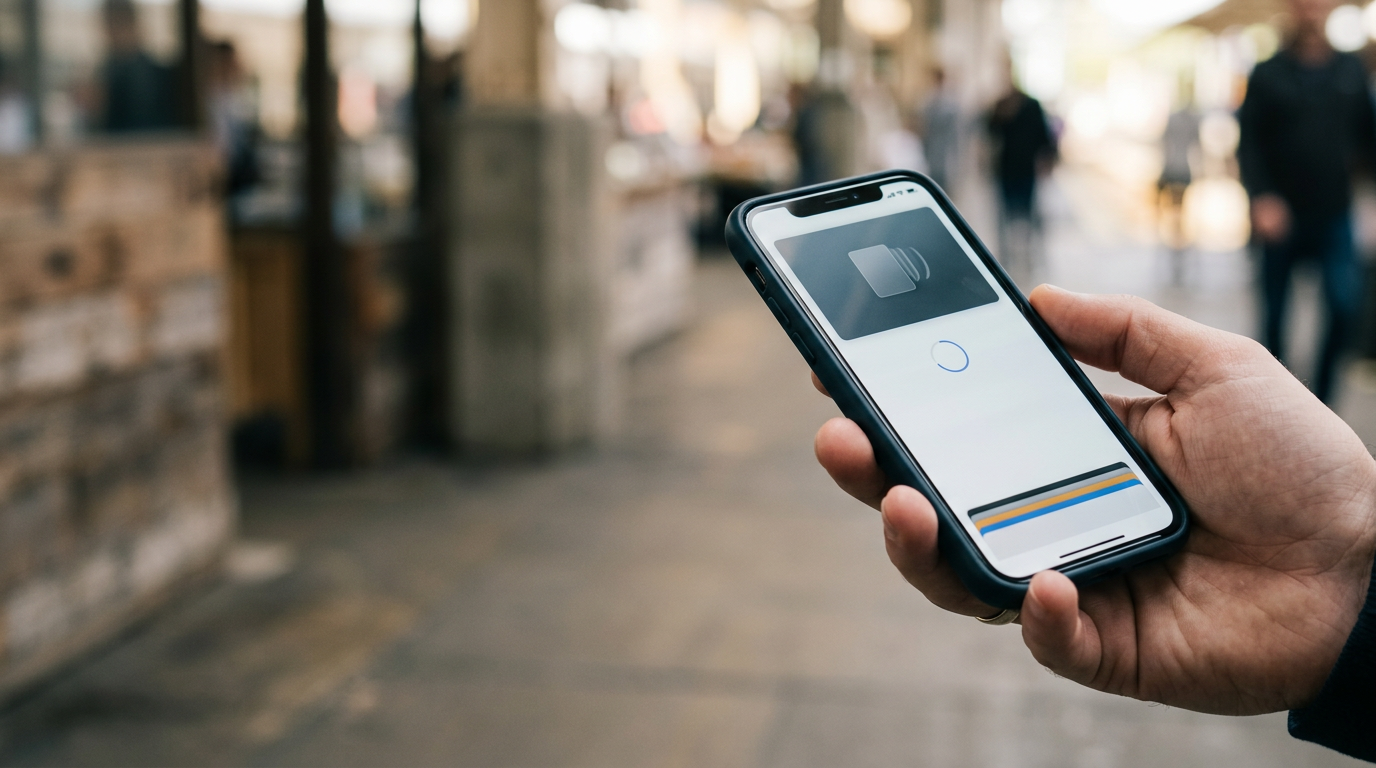
A web profile is highly accessible, but it relies on an active internet connection and browser tabs that users frequently close. To ensure persistence, custom digital business cards must integrate directly with the native digital wallets on modern smartphones.
Apple Wallet and Google Wallet Deployment
Integrating with native wallets involves generating specific file types: .pkpass for Apple Wallet and JWT (JSON Web Tokens) for Google Wallet. When a user taps "Add to Wallet" on your hosted profile, the server generates a cryptographically signed pass containing your contact information and a scannable QR code.
The primary failure point here is neglecting the certificate signing process. Apple requires a valid Apple Developer account to generate the certificates needed to sign a .pkpass file. If the pass is unsigned or the certificate expires, iOS will silently reject the download without presenting a clear error message to the user. Properly configured wallet passes allow you to push updates to the card dynamically, ensuring that everyone who has saved your card receives your new job title automatically. For a detailed breakdown of wallet infrastructure, see How to Create Business Cards for Digital Wallets and QR Ecosystems.
5. Test Across Scanning Environments
Deploying virtual business cards without rigorous physical testing guarantees a high failure rate in the field. The environment where you test the code on your monitor is entirely different from the environment where the code will actually be used.
Lighting, Distance, and Contrast
Smartphone cameras rely on contrast to identify the position detection patterns (the three large squares in the corners of the QR code). The most common deployment mistake is inverting the colors - placing a white QR code on a black background. While some modern native camera apps can invert the image in real-time to read it, many third-party scanning apps cannot. Always ensure the QR pattern is darker than its background.
Additionally, the code must maintain a "quiet zone" - a margin of clear space around the perimeter equal to at least four QR modules. If text, graphics, or borders encroach on this quiet zone, the scanner cannot isolate the code from the surrounding artwork. When scaling operations, reading Best Services for Custom Business Cards in 2026: A Guide to Speed and Scale provides insight into maintaining these tolerances during mass production.
Common Pitfalls & Troubleshooting
When a digital contact system fails, the symptom usually looks the same: the user's phone does nothing when pointed at the code. However, the root causes vary significantly.
Symptom: The camera recognizes the code but fails to load the destination.
- Diagnosis: This is almost always a caching or DNS issue with the redirect link, not a problem with the QR code itself. The QR code is successfully passing the URL to the browser, but the server is failing to resolve the HTTP 302 redirect.
- Fix: Test the raw URL printed beneath the QR code in a desktop browser with developer tools open. Verify that the redirect points to an active SSL (HTTPS) endpoint.
Symptom: The iOS camera scans the code, but no "Add to Contacts" prompt appears.
- Diagnosis: The hosted profile is delivering the
.vcffile with an incorrect MIME type. If the server delivers the file astext/htmlinstead oftext/vcard, iOS will simply display the raw text data in Safari rather than triggering the Contacts app. - Fix: Adjust the server headers on your hosting platform to explicitly declare the
Content-Type: text/vcardfor the download link.
Symptom: The code takes several seconds of hunting and focusing to scan.
- Diagnosis: The code is either too dense, lacks sufficient contrast, or the quiet zone has been compromised by surrounding design elements.
- Fix: Shorten the destination URL using a redirect service to reduce module density, and increase the margin of whitespace around the physical code.
FAQ
Do recipients need to download a specific app to scan my card?
No. Both iOS and Android have integrated native QR code scanning directly into their default camera applications. As long as the code points to a standard URL or vCard, the native camera will process it without third-party software.
Can I track how many times my card has been scanned?
Yes, provided you use a dynamic QR code that points to a hosted URL. The routing server logs the ping before redirecting the user to your contact file, allowing you to track scan volume, device types, and geographic data. Raw vCard QR codes cannot be tracked because the data transfer happens entirely offline.
Why does my logo make the QR code unscannable?
Placing a logo over a QR code destroys a portion of the data modules. If the error correction level is not set high enough (Level H, 30%), the scanner cannot mathematically recover the missing data hidden behind your logo.
How do I update my contact information after the code is printed?
You must use a dynamic QR code system. The printed code contains a static, permanent link (e.g., a routing URL). When you need to update your details, you log into your provider's dashboard and change the destination that the routing URL points to.